This guide will detail how to add Antspace Cooling Towers to the Infrastructure tab and add a stats block to your dashboard.
Adding a Cooling Tower to Infrastructure
To add a Bitmain Antspace HK3 Liquid Cooling Tower to Foreman, navigate to the Infrastructure tab and click Add Infrastructure. When the pop-up window appears, select Liquid Cooling Tower - Antspace Cooling Tower from the drop-down menu. Next, enter the name of your cooling tower and the IP address it can be found at. Finally, select your Pickaxe from the drop-down menu to add the cooling tower. The port value will always auto-fill with a value of 80.
Adding Multiple Cooling Towers
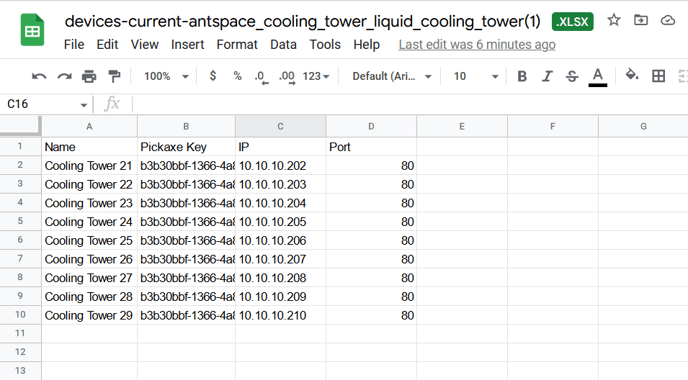
If you have multiple cooling towers to add at once, you can use the Upload Infrastructure function. First, select Liquid Cooling Tower - Antspace Cooling Tower from the drop-down menu and click Download to generate a CSV file where you will input your cooling towers. Like adding a single cooling tower, you'll need to input data for the Name, Pickaxe Key, IP Address, and Port (this value is always 80). Once you've entered data for all cooling towers, click Choose File and select your CSV file. Next, click Upload to finish the process and populate your Infrastructure screen with your cooling towers.
Associating Cooling Towers with Site Map Groups
Now that your Bitmain Antspace HK3 Liquid Cooling Towers have been uploaded to Infrastructure, you can associate them with groups on your Site Map.
Click View in Site Map from the Actions button on your cooling tower. Select the identifier group that your cooling tower will be responsible for from the drop-down menu, then click View in Site Map to be redirected.
Associating Multiple Cooling Towers at Once
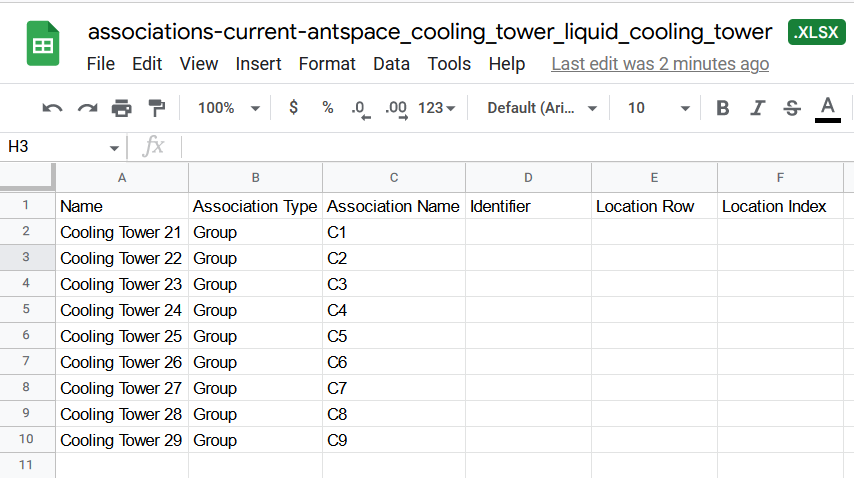
You can accomplish this via the Upload Associations function if you have multiple cooling towers that you'd like to associate with a single action. Select Liquid Cooling Tower - Antspace Cooling Tower from the Choose a Type dropdown list and click Download to generate your CSV file. Since cooling towers are associated with groups on your Site Map, you'll enter Group for the Association Type and the name of the group you want to associate your cooling tower with under the Association Name column. Although you won't be entering any values for Identifier, Location Row, or Location Index, these column headers must remain on your CSV in order for a successful upload to Foreman. Once your CSV is ready, click Choose File, select your CSV, and then click Upload to finish the job. Your cooling towers will now be associated with your Site Map groups.
Adding Cooling Tower Stats to your Dashboard
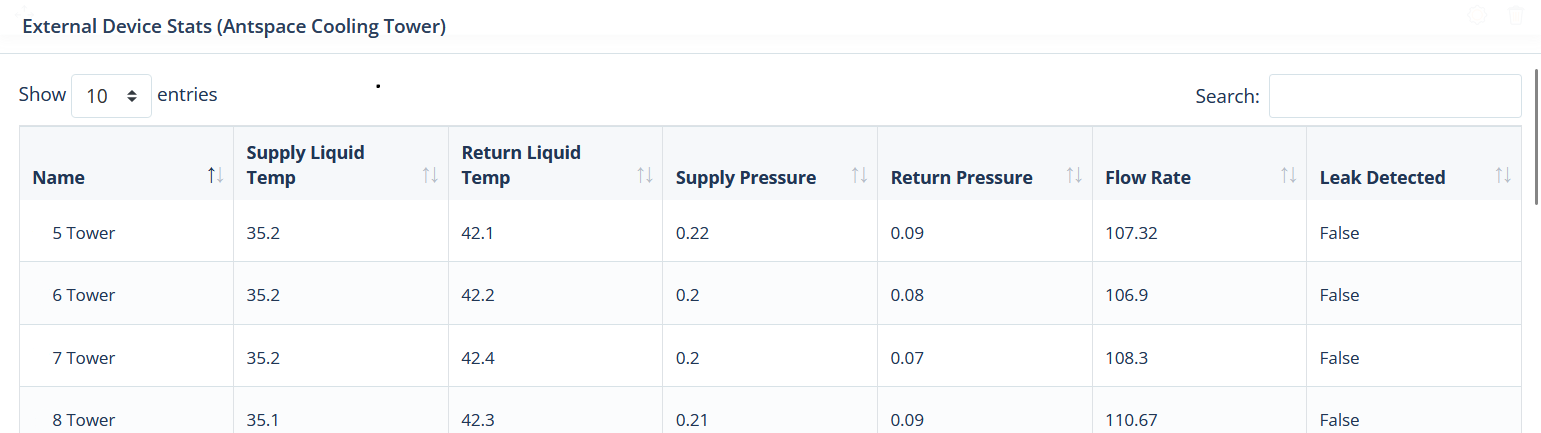
Since the Dashboard in Foreman is fully customizable, you can add a stats block that shows real-time data from your associated cooling towers.
While on your Dashboard page, click the Page Builder icon at the bottom left of the screen. Then, under Add a New Block, scroll down and select External Device Stats from the menu. If you have multiple device types added to Infrastructure, you can toggle which device type this block returns stats from by using the gear icon on the top right of the stats block. Once you're satisfied with the size and position of your stats block, click Save Layout to finalize your new Dashboard.
Comments
0 comments
Article is closed for comments.